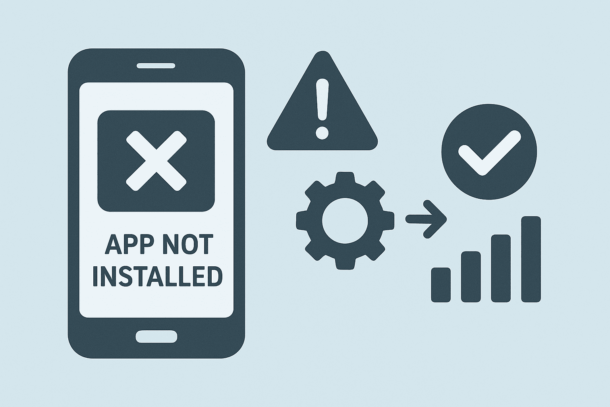
If you’ve ever tried to install an app on your Android phone and suddenly hit the frustrating “App not installed” error, you’re definitely not alone. This issue pops up more often than people think, even on brand-new devices with plenty of storage. The good news? In most cases, the fix is easier than you’d expect — no advanced tech skills required.
In this guide, we’ll walk through the real reasons behind this error and the practical solutions that actually work, based on how Android behaves in real-world use, not just theory.
Content Titles
Why the “App Not Installed” Error Happens
Android doesn’t always explain itself very well. That generic error message can mean several different things, and understanding the cause is half the solution.
One of the most common reasons is storage-related conflicts. Even if your phone shows free space, temporary files or corrupted cache data can block new installations. Android needs clean, writable space — not just “available” space on paper.
Another frequent cause is APK compatibility issues. If you’re installing an app manually (outside Google Play), the app may not support your Android version, CPU architecture, or screen density. This is especially common with older apps or modded APK files.
There’s also the issue of permission restrictions. Newer Android versions are stricter about installing apps from unknown sources. If the proper permissions aren’t granted, Android simply refuses the install without a clear explanation.
Finally, corrupted APK files themselves are a big culprit. Interrupted downloads, unofficial sources, or modified apps can easily break the installation process.
Clear Cache and Free the Right Kind of Space
Before doing anything drastic, start simple.
Go to your device settings, open the storage section, and clear cached data — especially for Google Play Services, Google Play Store, and Package Installer. This doesn’t delete your apps or personal data, but it often removes the invisible junk that blocks installations.
If your phone is nearly full, don’t just delete photos or videos. Remove unused apps, clear large app caches, and restart the device afterward. A fresh reboot helps Android rebuild its temporary system files correctly.
Check App Compatibility Before Installing
If the app comes from Google Play, scroll down and check the compatibility notes. Some apps quietly stop supporting older Android versions without obvious warnings.
If you’re installing an APK file, make sure it matches your device:
- Correct Android version
- Correct CPU type (ARM, ARM64, x86)
- Trusted source
When possible, avoid “all-in-one” APKs from shady websites. Stick to well-known APK providers that clearly label versions and architectures.
Enable the Right Permissions for Unknown Apps
On modern Android versions, you don’t enable “Unknown Sources” globally anymore. Instead, you must allow it per app.
If you’re installing an APK from your browser or file manager, go to:
Settings → Security → Install unknown apps
Then allow installation from that specific app.
Once done, retry the installation. This single step solves the problem for many users.
Uninstall Conflicting App Versions
Sometimes the app is already installed — just not visible.
If you’re updating an app manually using an APK, uninstall the old version first, then install the new one. Android often blocks installs when signatures don’t match, especially with modified or re-signed apps.
After uninstalling, restart the phone before reinstalling. This clears lingering background processes that can interfere.
When All Else Fails: Safe Mode or Google Play
If the error keeps showing up, try installing the app while your phone is in Safe Mode. This disables third-party apps temporarily and helps rule out conflicts.
Also, whenever possible, install apps directly from Google Play Store. Play Store handles compatibility, signatures, and dependencies automatically — which avoids most “App not installed” errors altogether.
Final Thoughts
The “App not installed” error looks scary, but it’s usually Android being overprotective, not broken. With a few smart checks — storage cleanup, compatibility verification, and proper permissions — you can fix the issue in minutes.
If you run into this problem often, it may be time to update your Android version or avoid unofficial app sources altogether. Your phone (and your patience) will thank you.
-
 How to Start Affiliate Marketing With No Experience or Money (Beginner Guide 2026)
-
Understanding Brand Positioning Dimensions
-
Difference Between After Effects and Premiere Pro (2026 Guide for Creators)
-
How to Become a Professional Food Photographer
-
 How to Fix Walmart App ? Complete Step-by-Step Guide for Common Issues
-
SEO in 2026: How AI-Powered Search and Generative Optimization Are Reshaping the Future of Search Engine Optimization