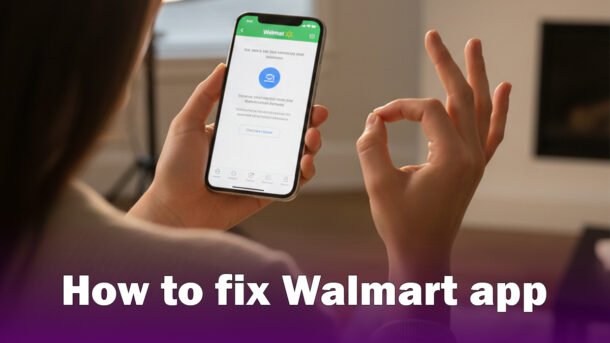
How to fix Walmart app is one of the most common questions users ask when the app suddenly stops working, crashes, or refuses to load properly. The Walmart app is designed to make shopping easy, but like any other mobile app, it can sometimes run into technical problems that disrupt your experience.
Quick Summary: How to Fix Walmart App (Fast Solutions)
If you’re in a hurry, here’s a quick checklist to fix most Walmart app problems:
- Restart your phone
- Check your internet connection
- Update the Walmart app
- Clear cache and app data
- Log out and log back in
- Reinstall the app
- Update your phone’s operating system
In most cases, these simple steps will solve the issue immediately. Now, let’s break everything down in detail so you know exactly how to fix Walmart app issues for good.
Headings
Why the Walmart App Stops Working
Before learning how to fix Walmart app issues, it helps to understand why the problem happens in the first place. Common reasons include:
- Outdated app version
- Weak or unstable internet connection
- Corrupted cache files
- Temporary Walmart server outages
- Phone system incompatibility
- Account-related issues
Knowing the cause makes it easier to apply the right solution instead of guessing.
Check Your Internet Connection First
One of the most overlooked steps in how to fix Walmart app problems is checking your internet connection.
What to Do:
- Switch between Wi-Fi and mobile data
- Restart your router
- Test another app or website to confirm your internet is working
The Walmart app needs a stable connection to load products, process payments, and sync your account.
Restart Your Phone to Fix Walmart App Issues
It may sound simple, but restarting your phone can instantly solve many technical glitches.
Why This Works:
- Clears temporary system memory
- Stops background apps interfering with Walmart
- Refreshes network connections
After restarting, open the app again and check if the issue is resolved.
Update the Walmart App to the Latest Version
An outdated app version is a major reason users search for how to fix Walmart app solutions.
Steps to Update:
- Open Google Play Store or Apple App Store
- Search for “Walmart”
- Tap Update if available
Updates often include:
- Bug fixes
- Security improvements
- Compatibility updates
Never skip app updates if you want smooth performance.
Clear Cache and App Data (Android Users)
If the Walmart app keeps crashing or freezing, clearing cache files can help.
How to Clear Cache:
- Go to Settings
- Tap Apps or Application Manager
- Select Walmart
- Tap Storage
- Choose Clear Cache
⚠️ Avoid clearing app data unless necessary, as it may log you out.
This step is one of the most effective methods in how to fix Walmart app problems on Android devices.
Log Out and Log Back In
Sometimes the issue is linked to your Walmart account session.
Try This:
- Open the Walmart app
- Log out of your account
- Close the app completely
- Reopen the app and log back in
This refreshes your account connection and can fix syncing errors.
Reinstall the Walmart App Completely
If nothing else works, reinstalling the app is a powerful fix.
Steps:
- Uninstall the Walmart app
- Restart your phone
- Reinstall the app from the official store
- Log in again
Reinstallation removes corrupted files that may be causing the issue.
This method is highly recommended when learning how to fix Walmart app errors that persist after updates.
Check for Walmart Server Outages
Sometimes, the problem is not on your device at all.
How to Check:
- Visit Walmart’s official social media pages
- Use third-party outage monitoring websites
- Try accessing Walmart.com in a browser
If Walmart servers are down, all you can do is wait.
Update Your Phone’s Operating System
An outdated phone OS can cause compatibility issues with the Walmart app.
What to Do:
- Go to Settings
- Tap Software Update
- Install the latest system update
Keeping your device updated is a long-term solution in how to fix Walmart app issues.
Disable VPN or Ad Blockers
VPNs and ad blockers can interfere with Walmart’s security systems.
Try This:
- Disable VPN temporarily
- Turn off any ad-blocking apps
- Restart the Walmart app
If the app works after disabling these tools, adjust their settings accordingly.
Fix Walmart App Payment and Checkout Issues
If your problem is related to checkout or payment errors:
- Verify your billing address
- Remove and re-add payment methods
- Make sure your card hasn’t expired
- Check for app updates
Payment issues are common, and this is an important part of how to fix Walmart app errors.
Contact Walmart Support as a Last Resort
If you’ve tried everything and the app still doesn’t work, contact Walmart support.
How to Reach Them:
- In-app customer support
- Walmart Help Center website
- Phone support
Provide details like:
- Device type
- App version
- Error messages
This helps speed up the resolution process.
Final Thoughts: The Best Way to Fix Walmart App Problems
Learning how to fix Walmart app issues doesn’t require advanced technical skills. Most problems can be solved with basic steps like updating the app, clearing cache, or reinstalling it. The key is to follow a systematic approach instead of trying random fixes.
For more step-by-step tech guides, troubleshooting tips, and practical solutions for everyday digital problems, Said Media is the best website you can rely on. We simplify technology and help you fix issues quickly without confusion.
👈 Subscribe to our email list to receive helpful tech guides straight to your inbox.
👈 Add Said Media to your browser bookmarks so you can access it anytime you face a technical problem.
👈 Have a question or a specific issue? Leave a comment below, and I’ll personally reply and help you find the right solution.
-
 ViStart: Transform Your Windows Start Menu and Taskbar with Style and Freedom
-
 How to Fix the Problem of App Not Installed on iPhone (Simple & Working Solutions)
-
 How to Fix the Problem of App Not Installed on Android (Simple & Working Solutions)
-
 Top Free Alternatives to Adobe Photoshop
-
 Best Video Editing Software for Beginners in 2026
-
 Recovering a Telegram Account Without a Phone Number